Cigna Dental Payment Reconciliation: Portal Tips and ERA Matching
Insurance Payment Quick Reference
Download the quick reference guide with ERA codes, payer portals, and troubleshooting tips for insurance payment reconciliation.
Cigna dental payments landed in your bank account. Now you need to match them to the right patients and procedures. Here is how to work with Cigna's systems effectively.
📚 Part of our insurance series: This article is part of The Complete Guide to Dental Insurance Payments, covering everything from EFT enrollment to ERA matching and payer-specific workflows.
Understanding Cigna Dental
Cigna is a major national health insurer with significant dental coverage, including standalone dental plans and dental benefits embedded in medical coverage. Cigna dental payments follow standard industry processes but have their own portal interface and some operational specifics that make them distinct from other payers.
Cigna dental products include DPPO plans with network discounts and out-of-network benefits, DHMO plans with assigned dentist and copay structure, dental benefits included in medical plans, and individual and family dental plans. Understanding which product type a patient has helps with eligibility verification and payment expectations.
How Cigna Dental Payments Arrive
Most Cigna dental payments arrive via electronic funds transfer. Bank descriptions typically show Cigna, Cigna Healthcare, or similar variations with a trace number. EFT payments usually deposit one to three business days after Cigna releases payment.
EFT enrollment is managed through the Cigna provider portal or through your clearinghouse. Verify your EFT enrollment is active and deposits are going to the correct bank account.
Practices not enrolled in EFT receive paper checks by mail with accompanying EOB documentation. EFT enrollment speeds payment receipt and simplifies reconciliation.
Cigna may offer virtual credit card payments. Evaluate whether the processing fee impact justifies VCC acceptance or whether you should request EFT only.
Navigating the Cigna Provider Portal
The Cigna for Health Care Professionals portal at cignaforhcp.com provides eligibility and benefits verification, claims status tracking, payment and remittance information, and provider information management.
Registration requires your Tax ID, NPI, and practice information. Once registered, you can set up access for additional staff members with appropriate permission levels.
Portal functions for reconciliation include payment search by date range, amount, or check number, ERA download in 835 format or viewable format, claim status lookup for pending or processed claims, and eligibility verification for confirming patient coverage.
ERAs from Cigna can arrive through the Cigna provider portal, your clearinghouse for automatic delivery, or direct connection for larger organizations. Configure your preferred ERA delivery method and verify it is working correctly.
Matching Cigna Deposits to ERAs
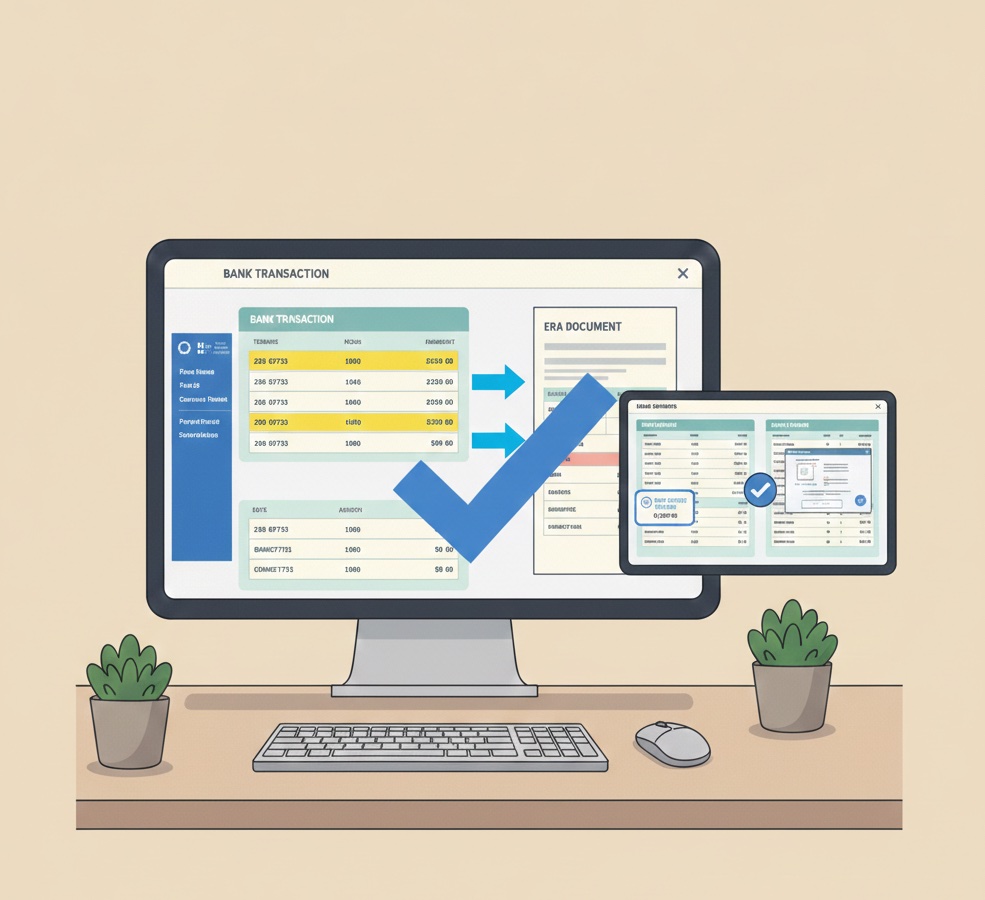
Identify the Cigna deposit in your bank account by noting the exact deposit amount, deposit date, bank description, and trace number.
Search for the matching ERA in the Cigna portal by navigating to the payment or remittance section, searching by date range around the payment date, searching by amount, and matching trace or check numbers. In your clearinghouse, filter by Cigna as payer and search by date range and amount.
Cigna may combine multiple ERAs into a single deposit. If the deposit does not match any single ERA, look for multiple ERAs from the same date range that sum to the deposit total.
Verify the match by confirming the ERA total matches the deposit exactly, trace numbers align, and timing makes sense. If totals do not match, investigate before posting.
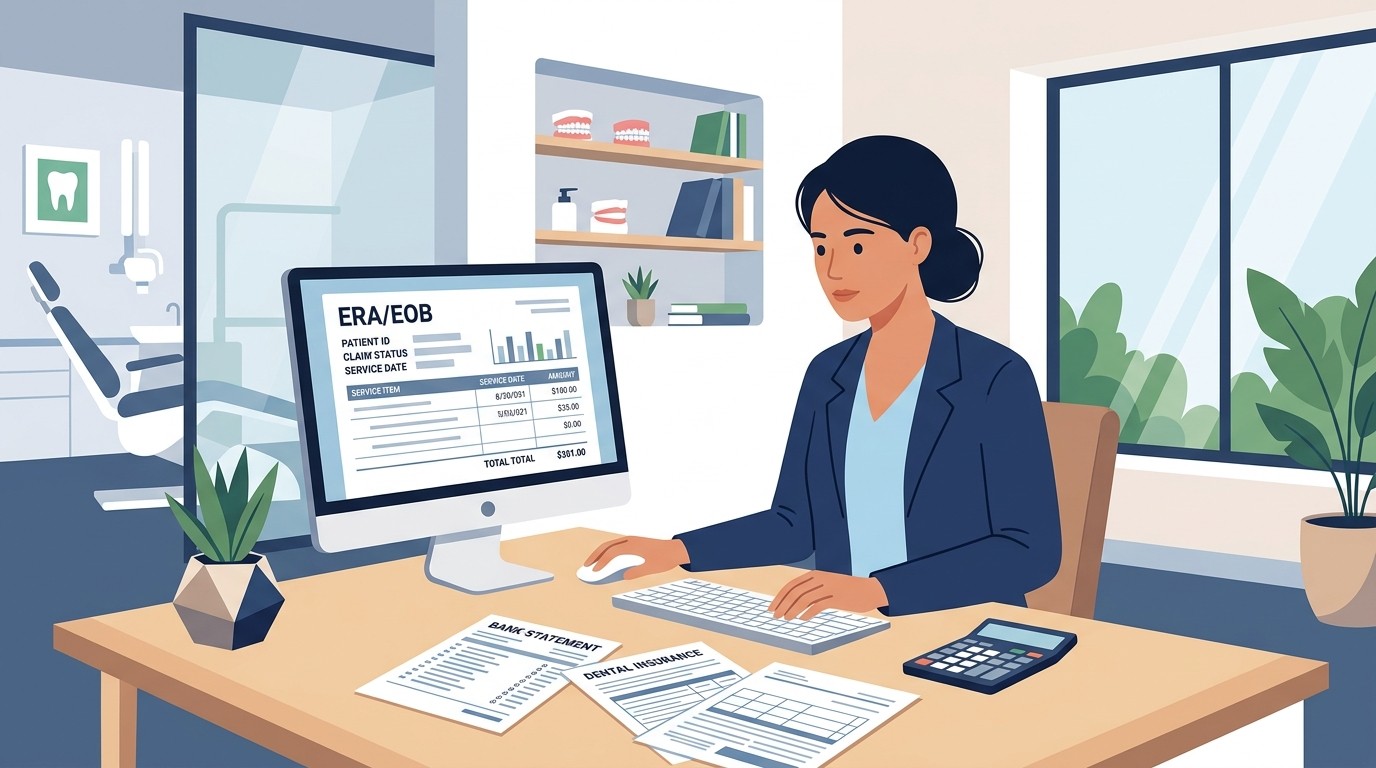
Before posting, review the ERA contents. Verify patients are yours and service dates are correct, review allowed amounts and contractual adjustments, check patient responsibility calculations, and identify denials requiring follow-up.
Post payments through auto-posting by importing the 835 file or through manual posting by working through each claim. Verify the posted total matches the ERA total.
Understanding Cigna ERA Contents
The ERA header includes payer identification as Cigna Dental or similar, payment date and amount, check or trace number, and provider information including Tax ID and NPI.
Each claim detail includes patient name and member ID, subscriber information if different from patient, claim number, service dates, procedure codes with submitted and allowed amounts, and adjustment and remark codes.
Cigna uses standard HIPAA adjustment codes. CO-45 indicates charges exceed the fee schedule or contracted amount. PR-1 indicates patient responsibility for deductible. PR-2 indicates patient responsibility for coinsurance percentage. PR-3 indicates patient copay amount. CO-50 indicates non-covered service under the plan. CO-29 indicates timely filing requirement not met. CO-97 indicates duplicate or already processed claim.
Cigna includes remark codes providing additional context. Common remarks address frequency limitations, waiting periods, age restrictions, and coordination of benefits situations. Review remarks to understand payment decisions.
Common Cigna Reconciliation Issues
Multiple ERAs in one deposit occur frequently. When the deposit does not match any single ERA, search for all ERAs from the same date range and confirm which ones sum to the deposit total. Cigna may combine ERAs from different claim batches or submission dates.
Cigna processes different product types through similar but not identical systems. DPPO and DHMO claims may have different payment patterns and adjustment structures. Understand which products you participate in and how each processes.
Cigna may recoup overpayments by deducting from current payments. The ERA shows negative amounts with original claim reference. Handle recoupments by locating the original claim, verifying the take-back is valid, adjusting the original posting, billing the patient if now responsible, and appealing if the recoupment is incorrect.
Coordination of benefits situations occur when patients have Cigna and another insurance. Verify COB information is accurate, confirm which insurance is primary, and ensure Cigna processes appropriately as primary or secondary. COB issues frequently cause payment variances.
Missing ERAs for deposits require investigation. Check the Cigna portal directly, your clearinghouse queue, and mail for paper EOBs. If the ERA is truly missing, contact Cigna provider services with the deposit trace number.
Prior authorization requirements apply to certain procedures. If denied for missing PA, verify whether PA was required, check if PA was obtained and included on the claim, and appeal with PA documentation if applicable.
Building a Cigna Reconciliation Routine
Daily tasks include checking the bank for Cigna deposits, matching deposits to ERAs, posting or queuing for posting, and flagging unmatched items.
Weekly tasks include reviewing aged unmatched Cigna items, following up on denials, working the resubmission queue, and checking status on pending claims.
Monthly tasks include reconciling total Cigna deposits to total posted payments, reviewing Cigna AR aging, analyzing denial patterns by reason code, and verifying fee schedule compliance.
Quarterly tasks include reviewing network participation status, assessing overall Cigna collection rate, addressing systematic issues identified, and updating procedures for any Cigna changes.
For Cigna provider services, call 1-800-244-6224 for dental inquiries. Have your Tax ID and NPI ready, know the specific claim or payment in question, note reference numbers from ERAs, and document all interactions.
Managing Cigna reconciliation alongside other payers? Zeldent automatically matches Cigna deposits to your PMS records and tracks patterns across all your insurance payers. Schedule a demo to see payer-agnostic reconciliation in action.
Insurance Payment Quick Reference
Download the quick reference guide with ERA codes, payer portals, and troubleshooting tips for insurance payment reconciliation.