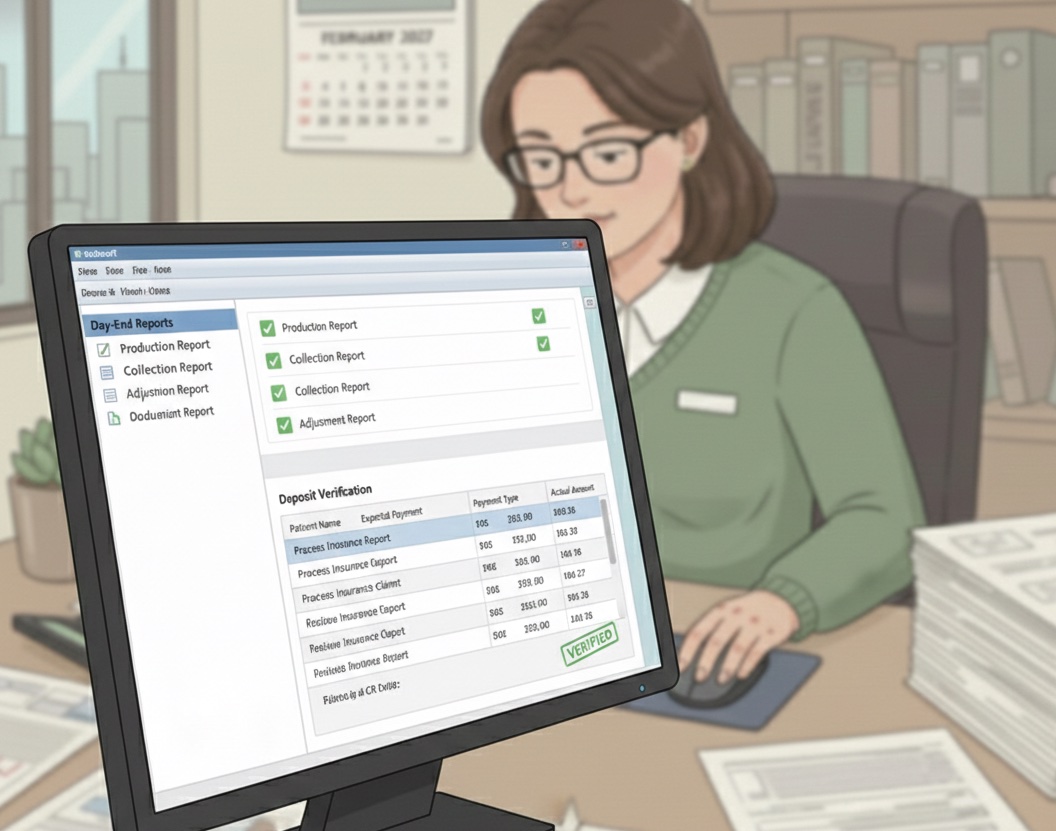
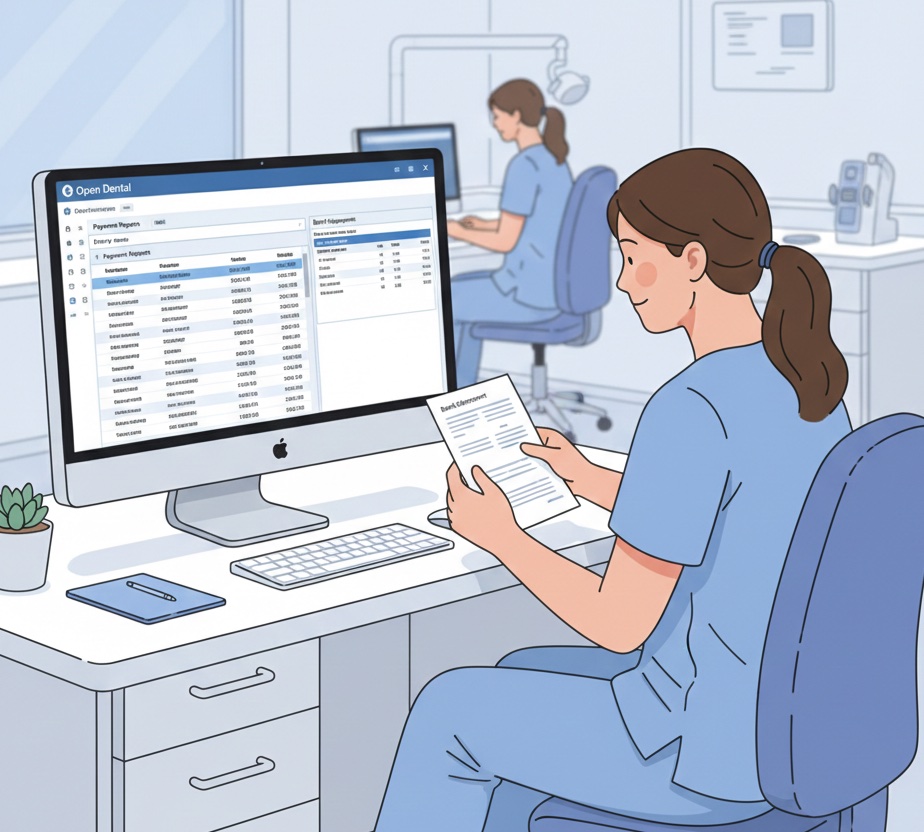
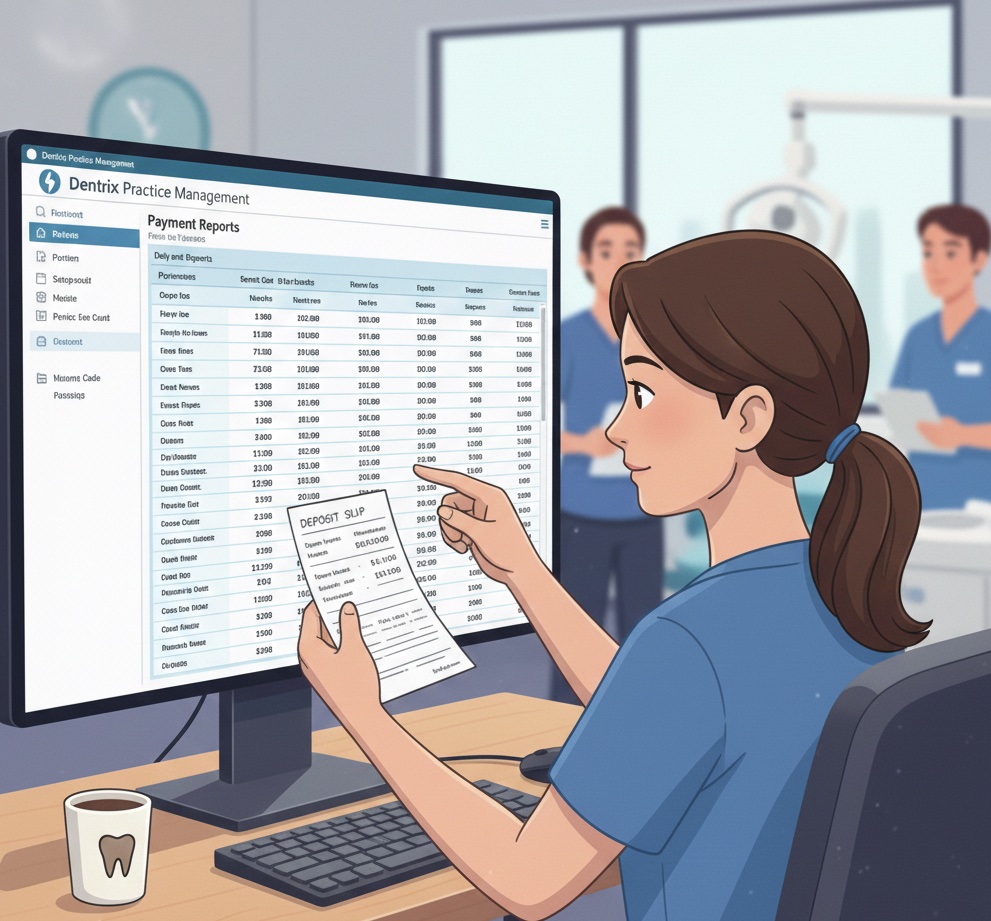
Curve Dental Reconciliation: Cloud-Based Best Practices
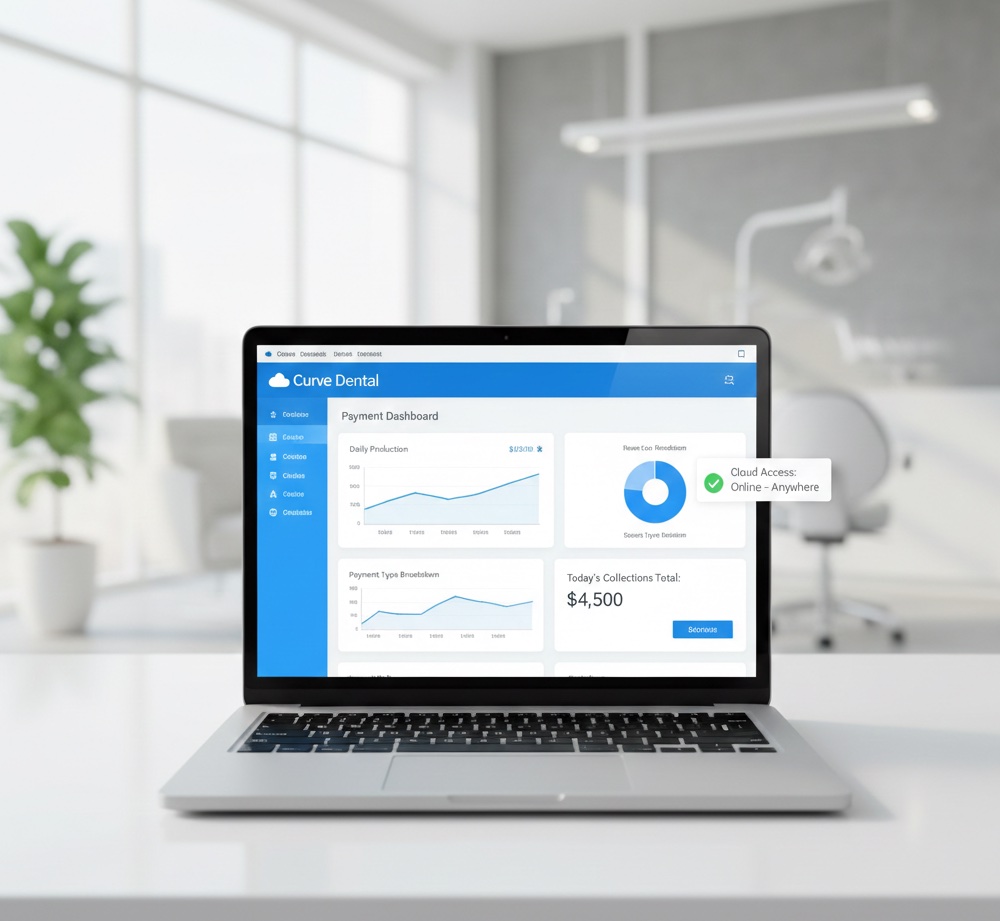
End-of-Day Reconciliation Checklist
Download the complete 9-step daily closeout checklist with reconciliation grid to close your books right every day.
Curve Dental's cloud-based approach changes how you access data and run reports. Here is how to adapt your reconciliation process for cloud-native practice management.
📚 Part of our reconciliation series: This article is part of The Complete Guide to Dental Practice Reconciliation, our comprehensive resource on closing your books accurately and preventing revenue leakage.
Understanding Curve Dental
Curve Dental is a cloud-based practice management system that runs entirely in your web browser. Unlike traditional server-based systems, Curve requires no local installation, updates automatically, and is accessible from anywhere with internet connectivity.
This cloud architecture affects how you approach reconciliation. Reports run in real-time against current data. Access is not limited to office computers. Data backup and security are handled by the vendor rather than locally.
Accessing Curve for Reconciliation
Curve Dental is accessed through any web browser at the Curve login page. No special software is required beyond a modern browser. This means reconciliation can happen from the office, from home, or from anywhere with internet access.
User permissions in Curve control who can access financial reports and payment information. Ensure users who perform reconciliation have appropriate access levels including permission to view and run financial reports, access to payment history, and visibility into deposit information.
Essential Curve Reports for Reconciliation
The Daily Payments report shows all payments received on a specific date, broken down by payment type including cash, check, credit card, and insurance. This is your primary reconciliation tool for matching collections to deposits.
The Deposit Report shows payments grouped by deposit, tracking which payments were included in each bank deposit. This is essential for matching PMS records to bank transactions.
The Insurance Payments report shows insurance payments with ERA details, useful for matching insurance deposits to posted payments and identifying unposted ERAs.
The Adjustment Report shows all adjustments made during a period, important for monitoring write-offs and ensuring adjustments are appropriate.
The Accounts Receivable report shows outstanding balances by patient and by age, useful for monthly review and AR management.
Daily Reconciliation in Curve
Start by running the Daily Payments report for the day being reconciled. Filter by date and include all payment types. Review the totals by payment type.
Reconcile cash by comparing the cash total from the report to your physical cash count. Investigate any variance.
Reconcile credit cards by comparing the credit card total from Curve to your merchant batch settlement. Account for timing differences between when transactions are recorded and when batches settle.
Reconcile checks by comparing the check total to physical checks on hand. Verify check numbers match the records in Curve.
Create the deposit in Curve by grouping the day's payments into a deposit record. This creates the link between individual payments and the bank deposit you will make.
Match to bank by verifying the deposit total in Curve matches what you actually deposit at the bank. Investigate any variance before proceeding.
Insurance Payment Reconciliation
For insurance EFT deposits, start by identifying the deposit in your bank account. Note the amount, date, and payer information.
Locate the corresponding ERA either through your clearinghouse or directly from the payer portal. Verify the ERA total matches the deposit.
Post the ERA in Curve by applying payments and adjustments to the appropriate patient accounts. Curve supports ERA import for automatic posting, or payments can be posted manually.
Verify the posting by confirming the total posted matches the ERA total and the bank deposit.
Monthly Reconciliation
Run a monthly summary of all payments by type and compare to bank statement deposits for the month. The total should match within expected timing differences for deposits at month-end.
Review AR aging to ensure accounts receivable is accurate. Identify old balances that may need write-off consideration.
Review adjustments for the month to ensure all write-offs are appropriate and properly documented.
Compare collections to production to calculate collection rate and identify any trends or concerns.
Cloud Advantages for Reconciliation
Real-time data means reports always reflect current information with no waiting for data sync.
Anywhere access means reconciliation can happen from any location, useful for accountants serving multiple practices.
Automatic updates mean you always have the latest features and report options without manual installation.
Built-in backup means your data is protected without local backup procedures.
Common Curve Reconciliation Issues
Browser compatibility issues may affect report display or functionality. Use a modern browser and keep it updated.
Internet connectivity issues can prevent access when the connection is down. Maintain a backup connection option for critical tasks.
User permission issues may prevent access to needed reports. Work with your Curve administrator to ensure appropriate access levels.
Report export limitations may affect how you work with data outside Curve. Explore export options for reports you need in other formats.
Using Curve Dental and want to automate reconciliation? Zeldent connects to cloud-based PMS systems including Curve to provide automated payment matching. Schedule a demo to see cloud-native reconciliation.
End-of-Day Reconciliation Checklist
Download the complete 9-step daily closeout checklist with reconciliation grid to close your books right every day.