Open Dental Payment Reconciliation: Tips for Accurate Posting
End-of-Day Reconciliation Checklist
Download the complete 9-step daily closeout checklist with reconciliation grid to close your books right every day.
Open Dental gives you flexibility and control. With that flexibility comes responsibility for setting up reconciliation processes that actually work.
📚 Part of our reconciliation series: This article is part of The Complete Guide to Dental Practice Reconciliation, our comprehensive resource on closing your books accurately and preventing revenue leakage.
Why Open Dental Reconciliation Requires Intentional Setup
Open Dental is the leading open-source dental practice management software, and its flexibility and customization options make it popular with practices that want control over their systems. That same flexibility means Open Dental does not force you into any specific reconciliation workflow. You have options for how to set up payment types, deposits, and reports, which is powerful but requires thoughtful configuration.
Without intentional setup, practices end up with payment type definitions that do not match their actual workflow, deposit processes that create rather than prevent confusion, and reports that do not provide the information needed for efficient reconciliation. This guide covers best practices for configuring and using Open Dental for effective reconciliation.
Understanding How Open Dental Organizes Payments
Open Dental uses configurable payment types that you can customize to match your practice. Default types include cash, check, credit card, insurance check, and EFT for electronic funds transfers. You can add, modify, or disable payment types to match your specific needs. The best practice is configuring payment types that align with how you actually receive and deposit funds, which makes reconciliation straightforward because your reports will naturally group payments the way your bank groups deposits. If you rely on an automated tool to post those EFTs, it helps to understand how automated posting differs from independent reconciliation.
Open Dental uses payment splits to allocate payments to specific procedures. A single payment can be split across multiple procedures, with splits tracking what each portion of the payment covers. The total of all splits equals the total payment amount. For reconciliation purposes, you care about total payment amounts matching deposits rather than individual splits, though understanding splits helps when investigating discrepancies.
Open Dental has a deposit management feature found under Manage and then Deposits that groups payments into deposits, tracks which payments are included in each deposit, and generates deposit slips. Using this feature to group payments and match them to bank deposits creates an audit trail that makes reconciliation much easier than trying to match individual payments to bank activity.
The Reports That Enable Open Dental Reconciliation
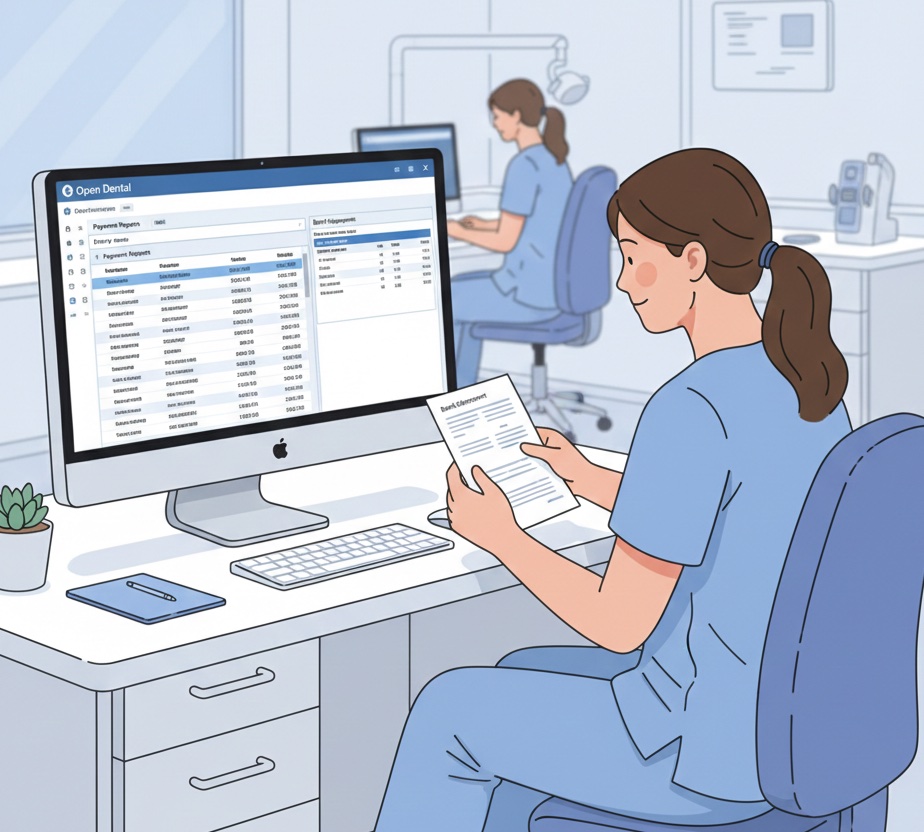
The Daily Payments report serves as your primary daily reconciliation tool. Access it through Reports, then Standard, then Daily Payments. This report shows all payments for the selected date range broken down by payment type, with provider and patient detail and totals by category. When running this report, set the date to the day you are reconciling, include all clinics if you operate multiple locations, and include all payment types.
The Deposits report shows deposit summary and detail through Reports, then Standard, then Deposits. It displays deposits created, the payments included in each deposit, and deposit totals. Use this report to match your created deposits to what actually shows in your bank account.
The Insurance Payment report provides insurance payment detail for ERA reconciliation through Reports, then Standard, then Insurance Payments. It shows insurance payments by carrier with claim details, payment amounts, and dates. Use this report when reconciling insurance EFTs to posted payments, especially when trying to identify which ERAs correspond to which bank deposits.
The Unearned Income report shows patient credit balances through Reports, then Standard, then Unearned Income. It displays patients with credit balances, amounts by patient, and sources of credits. Monitor this report regularly because credit balance accumulation may indicate posting errors or outstanding refunds that need processing.
The Production and Income report provides an overview of practice financial activity through Reports, then Standard, then Production and Income. It shows production by provider, collections by type, adjustments, and write-offs. Use this report for high-level verification that collections are reasonable relative to production.
The Daily Reconciliation Process in Open Dental
Before reconciling, ensure all activity for the day has been entered. All patients should be checked out, all patient payments should be entered, all insurance payments for the day should be posted, and any adjustments should be recorded. Starting reconciliation with incomplete data guarantees that your numbers will not match.
Run the Daily Payments report for today by going to Reports, then Standard, then Daily Payments, setting the date, running the report, and reviewing totals by payment type. This report becomes your reference for the rest of the reconciliation process.
Cash reconciliation compares the cash total from the Daily Payments report to physical cash in your drawer. Count the cash, compare totals, and document any variance with an explanation. When investigating variances, check for payments entered as the wrong type, verify all cash payments are in the system, and look for entry errors.
Credit card reconciliation compares the credit card total from the Daily Payments report to your merchant batch. Run settlement on your credit card terminal, compare the batch total to the Open Dental total, and investigate any variance. Common issues include declined transactions showing in Open Dental as completed, refunds not matching between systems, and timing differences between when transactions were recorded.
Check reconciliation compares the check total from the Daily Payments report to physical checks in hand. List all checks received, compare totals, and verify that check numbers match the entries in Open Dental.
Creating the deposit groups payments for bank deposit. Go to Manage, then Deposits, click Add to create a new deposit, select the payments to include, verify the deposit total, and print or save the deposit slip. The best practice is creating one deposit per bank deposit to maintain clear matching and avoid confusion about which Open Dental deposit corresponds to which bank transaction.
Complete documentation by saving the Daily Payments report, the deposit slip, your cash count sheet, the credit card batch report, and explanations for any variances found.
Insurance Payment Reconciliation in Open Dental
If using ERA auto-posting, configure your clearinghouse connection in Open Dental through Setup, then Family/Insurance, then Clearinghouses. The process involves downloading or importing ERAs, letting Open Dental auto-post the payments, reviewing posting accuracy, and verifying totals match the ERA. Verification requires running the Insurance Payment report, comparing to ERA totals, and investigating any discrepancies.
Manual EOB posting requires opening the claim in Open Dental, entering payment and adjustment amounts, verifying amounts match the EOB, and saving the payment. When posting multiple claims from one check, note the total check amount, post each claim individually, verify the total posted matches the check, and create a deposit for the check.
Insurance EFTs need reconciliation to ERAs. Identify each insurance EFT in your bank statement, find the matching ERA or ERAs, verify that Open Dental shows payments posted for those ERAs, and confirm totals match. The Insurance Payment report filtered by date and carrier helps identify which payments were posted.
Monthly Reconciliation Beyond Daily Closeout
Monthly bank reconciliation verifies that the month's collections match bank deposits. Run the Daily Payments report for the entire month, sum all bank deposits for the month, compare totals, and investigate and document any variance. Common variance sources include deposits in transit at month-end, credit card processing fees if your bank shows net deposits, and non-revenue deposits that should not be included in the comparison.
AR verification ensures the accounts receivable balance is accurate. The Aging of AR report shows AR by age, and the Insurance Aging report provides insurance-specific detail. Review that total AR is reasonable for your practice size, that the aging distribution is appropriate, and that there are no unexpected large balances that might indicate posting errors.
Adjustment analysis examines adjustment activity for the month. Run the Adjustment report, review by adjustment type, verify large adjustments are properly documented, and calculate the adjustment percentage relative to production.
Troubleshooting Common Open Dental Issues
Payment type confusion occurs when payments are entered with the wrong type. Symptoms include cash not balancing to the drawer, credit card totals not matching the merchant batch, or check counts not matching physical checks. The fix involves finding the incorrect payment, editing it to use the correct payment type, and rerunning reports to verify the correction.
Deposit matching problems occur when deposits in Open Dental do not match the bank. Causes include payments not included in the deposit, wrong payments grouped together, or deposits created with the wrong date. Review deposit contents, add or remove payments as needed, and verify the total matches the bank.
ERA posting errors occur when auto-posted ERAs have incorrect data. Common issues include wrong patient matched, incorrect amounts, or adjustments not applied properly. Review the ERA against the posting, correct individual claim postings, and adjust patient balances as needed.
Credit balance accumulation occurs when patient credits grow unexpectedly. Causes include overpayments not refunded, insurance paying more than expected, or posting errors creating false credits. Run the Unearned Income report, review large or old credits, and determine whether each requires a refund or a correction.
Configuring Open Dental for Better Reconciliation
Payment type setup should be configured for clear reconciliation through Setup, then Definitions, then Payment Types. Disable payment types you do not use to reduce confusion, create specific types for different card types if that helps your reconciliation, and use clear descriptive names that your team understands.
Deposit settings should be configured through Setup, then Manage, then Deposits. Enable the deposit feature, set up your default deposit slip format, and configure for your bank's specific requirements.
User permissions should be configured through Setup, then Security to control access to payment functions. Limit who can enter payments, restrict payment deletion and modification, and enable audit trail logging to track changes.
Report favorites save commonly used report configurations for quick access. Run a report with your desired settings, save it as a favorite, and access it quickly for daily use rather than configuring settings each time.
Multi-Location Considerations
If using Open Dental's clinic feature, run reports filtered by clinic so each location reconciles separately. Corporate can run combined reports for oversight. Create deposits per clinic and match to clinic-specific bank accounts.
Centralized oversight for multi-location practices can use central reports combining all clinics, dashboards for clinic comparison, or exception reporting that highlights problem locations rather than requiring review of every location's details.
Integrating Automated Reconciliation
Automated tools need access to Open Dental data. Options include direct database connection through MySQL since Open Dental uses an open database, report exports, or API integration using Open Dental's API. Bank integration connects bank data for automated matching, requiring a secure bank feed with daily refresh and proper account mapping to clinics.
Automated matching provides daily reconciliation without manual effort, exception flagging for investigation, historical tracking and trending, and multi-location visibility that would be impractical to achieve manually.
Using Open Dental and want to automate reconciliation? Zeldent connects to Open Dental to automatically match payments to bank deposits across all your locations. Stop the manual comparison work and focus on exceptions that matter. Schedule a demo to see Open Dental reconciliation automated.
End-of-Day Reconciliation Checklist
Download the complete 9-step daily closeout checklist with reconciliation grid to close your books right every day.