Dentrix Reconciliation Best Practices: A Complete Walkthrough
End-of-Day Reconciliation Checklist
Download the complete 9-step daily closeout checklist with reconciliation grid to close your books right every day.
Dentrix has the reports you need for reconciliation. The challenge is knowing which ones to use, when to run them, and how to interpret what they show.
📚 Part of our reconciliation series: This article is part of The Complete Guide to Dental Practice Reconciliation, our comprehensive resource on closing your books accurately and preventing revenue leakage.
Why Dentrix Reconciliation Requires Specific Knowledge
Dentrix is the most widely used practice management software in dentistry, which means millions of transactions flow through Dentrix systems every day. When those transactions are not properly reconciled, revenue leaks in ways that often go unnoticed until month-end or year-end when the cumulative impact becomes impossible to ignore.
The good news is that Dentrix provides robust reporting for reconciliation. The challenge lies in knowing which reports to use for which purpose and how to use them effectively. This guide walks through Dentrix-specific reconciliation from daily closeout to monthly verification, with the exact reports and procedures you need to keep your books accurate.
How Payments Flow Through Dentrix
Understanding the payment flow helps you know where to look when something does not match.
Payments enter Dentrix through several paths. Patient payments at checkout are typically entered by staff in the Ledger or through the Payment window. Insurance payments can be posted manually from EOBs or auto-posted from ERAs through integrated clearinghouses. Batch payments allow multiple transactions to be entered together, which is common during insurance posting sessions when a single check covers multiple patients.
Each of these paths creates transaction records that should ultimately reconcile to bank deposits. When they do not, the problem usually traces back to one of these entry points.
Dentrix organizes this data in a few key structures. The Ledger provides the patient-level record of all transactions including charges, payments, and adjustments. The Payment Table stores payment transaction details including payment type, amount, and date. The Deposit Slip function groups payments into deposits for bank reconciliation. Understanding these structures helps when you need to track down a discrepancy.
Essential Reports for Dentrix Reconciliation
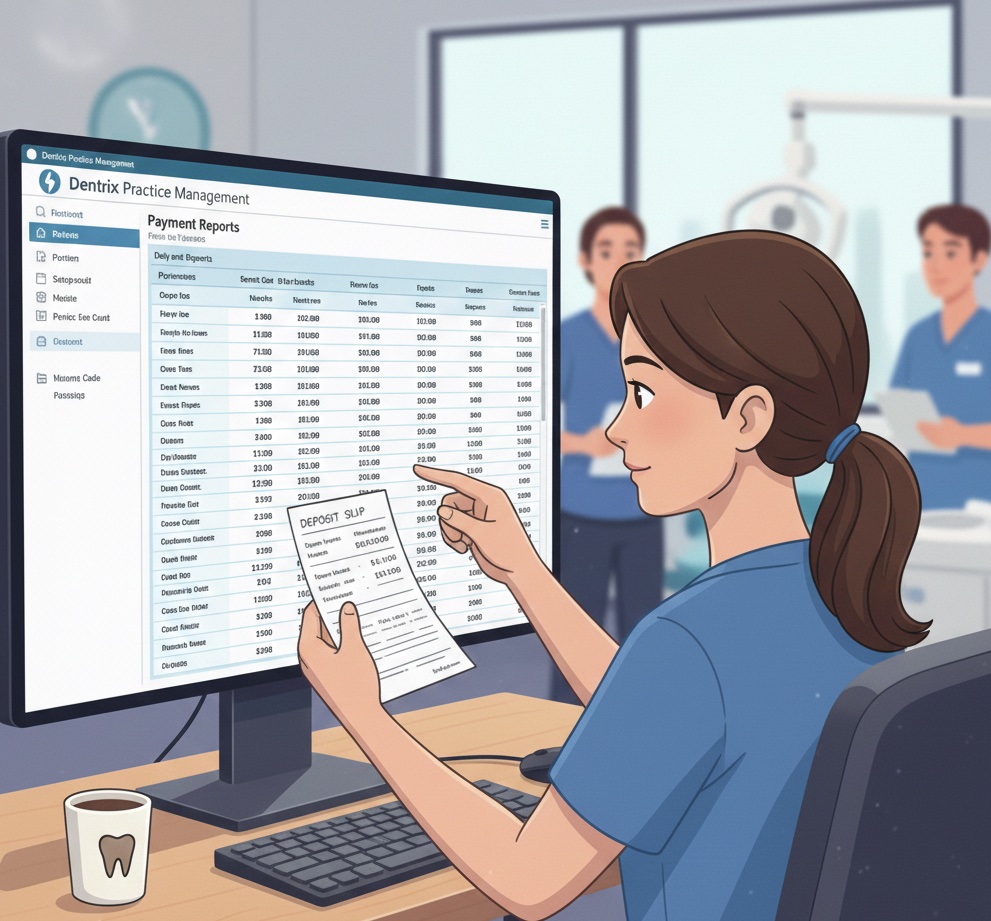
The Daily Payment Report forms the foundation of daily reconciliation. Access it through Reports, then Ledger, then Daily Payment Report. This report shows all payments entered for the selected date, broken down by payment type including cash, check, credit card, and insurance. It includes provider and patient information along with payment totals by category. Run this report for the business day being closed, compare totals to your actual collections, and verify each payment type matches its source.
The Deposit Slip Report groups payments into deposits for bank reconciliation. Find it under Reports, then Ledger, then Deposit Slip. It shows payments grouped by deposit, deposit totals, and individual payment details within each deposit. Create deposit slips as part of your end-of-day process, then use this report to match deposit slip totals to what actually gets deposited at the bank.
The Day Sheet provides a comprehensive daily activity report through Reports, then Management, then Day Sheet. It shows production by provider, collections by payment type, adjustments, and a summary of daily activity. Use it for management review and to verify that collections align with other reports you are running.
The Payment by Insurance Report offers insurance payment detail specifically for ERA and EOB reconciliation. Access it through Reports, then Ledger, then Payment by Insurance. It shows insurance payments by carrier with claim-level detail, payment dates, and amounts. This report is essential for reconciling insurance EFT deposits, verifying that ERA postings are complete, and identifying insurance payments that need investigation.
The Adjustment Report tracks adjustments that affect revenue. Find it under Reports, then Ledger, then Adjustment Report. It shows all adjustments by type, adjustment amounts and reasons, and who made each adjustment. Use it to monitor adjustment activity, verify that adjustments are appropriate, and identify unusual patterns that might indicate problems.
Daily Reconciliation Step by Step
Before running any reports, close the day in Dentrix by ensuring all patients have been checked out, all payments have been entered, all insurance payments have been posted, and the team is ready for day-end procedures. Starting closeout with incomplete work guarantees discrepancies.
Run the Daily Payment Report for the current business day with all payment types and all providers included. Review the total payments by type, scan for individual payment accuracy, and note any obvious errors that need correction.
Cash reconciliation compares the Dentrix cash total to physical cash in your drawer. Note the cash total from the Daily Payment Report, count your cash drawer, compare the totals, and investigate any variance over five dollars. Common cash variances include payments entered as the wrong type, payment amounts entered incorrectly, cash not entered in Dentrix at all, or physical cash collected but the drawer coming up short.
Credit card reconciliation compares the Dentrix credit card total to your merchant batch. Note the credit card total from the Daily Payment Report, settle your credit card batch in the terminal, compare the totals, and investigate any variance. Common credit card variances include refunds not recorded in Dentrix, payments run on the terminal but not entered in Dentrix, declined transactions recorded as successful payments, or terminal batches that include transactions from the prior day.
Check reconciliation verifies that check payments match physical checks. Note the check total from the Daily Payment Report, count and list physical checks in hand, compare totals and check numbers, and investigate any variance.
Creating the deposit slip groups payments for deposit. In Dentrix, go to the Deposit Slip function, select payments to include, create the deposit slip, and print or save the deposit documentation. For the physical deposit, prepare cash and checks per the deposit slip, verify the deposit total matches Dentrix, and secure the deposit per your office protocol.
Complete daily documentation by saving or printing the Daily Payment Report, the Deposit Slip, cash count verification, the credit card batch report, and explanations for any variances found.
Insurance Payment Reconciliation
Insurance payments require their own reconciliation process whether you are posting from ERAs or paper EOBs.
When posting from ERAs, download the ERAs from your clearinghouse, import or auto-post to Dentrix, verify posting accuracy, and match ERA totals to bank EFT deposits. Verification involves running the Payment by Insurance report, comparing to ERA totals, and investigating any discrepancies.
When posting from paper EOBs, gather the EOBs received, post each payment to the correct patient and claim, enter adjustments as shown on the EOB, and track EOBs against bank deposits. The best practice is to batch all EOBs for an insurance check together and verify the batch total matches the check amount before moving on.
Matching to bank deposits ensures that insurance EFTs tie to ERAs. Identify each insurance EFT in your bank account, find the corresponding ERA or ERAs, verify that Dentrix postings match the ERA, and confirm the posted total equals the bank deposit. Common issues include multiple ERAs in one EFT, ERAs posted but the EFT not yet received, or EFTs received but the ERA not yet downloaded.
Monthly Reconciliation Procedures
Bank-to-Dentrix reconciliation verifies that monthly collections match bank deposits. Run the Daily Payment Report for the entire month, sum bank deposits for the month, compare totals, and investigate any variance. Expected variance sources include timing differences from deposits in transit, credit card processing fees if those are netted from deposits, and non-revenue deposits in the bank account.
AR reconciliation verifies that the accounts receivable balance is accurate. The Aging Report shows AR by age bucket, and the Insurance Aging report provides insurance AR detail. Review that total AR is reasonable, that there are no unexpected large balances, and that the aging distribution is appropriate for your practice.
Adjustment analysis reviews monthly adjustment activity. Run the Adjustment Report for the month, calculate the adjustment percentage of production, review large adjustments for appropriateness, and verify that all adjustments are properly documented.
Troubleshooting Common Dentrix Issues
Payment type mismatches occur when a payment is entered as the wrong type, such as cash entered as a check. Symptoms include the cash drawer not balancing, check totals not matching physical checks, or credit card totals not matching the batch. The fix involves identifying the misclassified payment, voiding or editing the incorrect entry, and re-entering with the correct payment type.
Duplicate payments happen when the same payment gets entered twice. Symptoms include collection totals higher than actual collections, patients with unexpected credit balances, or bank deposits not matching Dentrix totals. The fix involves identifying the duplicate entry, voiding the duplicate, and adjusting the patient balance if needed.
Missing payments occur when a payment is collected but never entered. Symptoms include a cash drawer that is over, deposits higher than Dentrix shows, or patient balances showing amounts due when they should be zero. The fix involves identifying the missing payment, entering it with the correct date and details, and verifying the patient balance is now correct.
Insurance posting errors happen when an ERA is posted incorrectly or incompletely. Symptoms include insurance EFTs not matching posted payments, claims showing wrong payment amounts, or patient portions calculated incorrectly. The fix involves comparing ERA detail to Dentrix posting, correcting individual claim postings, and reposting if necessary.
Date entry errors occur when a payment is entered with the wrong date. Symptoms include a day not balancing while the week or month does balance, or timing variances that seem to resolve themselves. The fix involves identifying payments with wrong dates, correcting the payment date, and rerunning reports for affected days.
Configuration for Better Reconciliation
Payment type setup should be configured to match your practice needs. Use separate types for cash, check, and credit card at minimum. Consider separate insurance payment types by carrier or type if that helps your reconciliation. Use clear naming that makes identification easy.
User permissions should control who can enter and modify payments. Limit payment entry to authorized staff, restrict payment modification and deletion, and ensure audit trails capture all changes.
Deposit slip configuration should match your workflow. Configure to match your bank's requirements, include all necessary detail, and enable for all payment types you use.
Report defaults should be set for efficiency. Configure the Daily Payment Report to default to the current day, include all payment types by default, and save custom report configurations that your team uses frequently.
The Value of Automated Reconciliation
Dentrix data export enables automated reconciliation tools to work with your data. Options include direct database integration which requires technical setup, report exports in CSV or similar formats, and API connections where available.
Bank feed integration connects bank data for automated matching. This requires a secure bank feed connection, daily data refresh, and proper account mapping.
Automated systems flag exceptions for human review rather than requiring manual matching of every transaction. The workflow involves automated matching running daily, exceptions being flagged for review, staff investigating and resolving exceptions, and the system learning from resolutions over time.
Using Dentrix and want automated reconciliation? Zeldent integrates with Dentrix to automatically match your payments to bank deposits, flagging exceptions that need attention. Stop spending hours on manual verification and let automation do the matching. Schedule a demo to see Dentrix reconciliation simplified.
End-of-Day Reconciliation Checklist
Download the complete 9-step daily closeout checklist with reconciliation grid to close your books right every day.