Dentrix Ascend Reconciliation: Cloud PMS Best Practices

Dentrix Ascend brings dental practice management to the cloud, but the shift from server-based Dentrix requires rethinking your reconciliation workflows. Here is how to maintain financial accuracy in the cloud.
Dentrix Ascend is Henry Schein One's cloud-based practice management system. Unlike traditional Dentrix, which runs on local servers, Ascend operates entirely in the browser. Your data lives in the cloud. Your team can access it from anywhere.
This flexibility is valuable, especially for multi-location practices. But it also changes how financial reconciliation works. The reports are different. The workflows are different. The verification processes need to adapt.
This guide covers how to reconcile effectively in Dentrix Ascend, whether you are transitioning from server-based Dentrix or learning the system fresh.
How Ascend Differs from Traditional Dentrix
Cloud Architecture
Traditional Dentrix stores data on a local server. Reports generate from that local database. Backups happen locally. Everything is contained within your practice network.
Dentrix Ascend stores everything in the cloud. Reports pull from centralized databases. Multiple locations share the same system. Data synchronizes in real time across all access points. If you are still planning the switch, know what tends to break when you move to a cloud PMS before you cut over.
This architecture affects reconciliation because:
- Reports reflect real-time data, not point-in-time snapshots
- Multiple users can be posting simultaneously
- Historical data is always accessible without backups
Report Generation
Ascend's reporting interface differs significantly from traditional Dentrix. The same financial information is available, but it is organized differently and accessed through different paths.
Key reports for reconciliation:
- Daily Closeout Report: Summary of daily transactions
- Payment Detail Report: Individual payment transactions
- Adjustment Report: Write-offs and adjustments
- Deposit Slip Report: Grouped payments for deposit
Multi-Location Capabilities
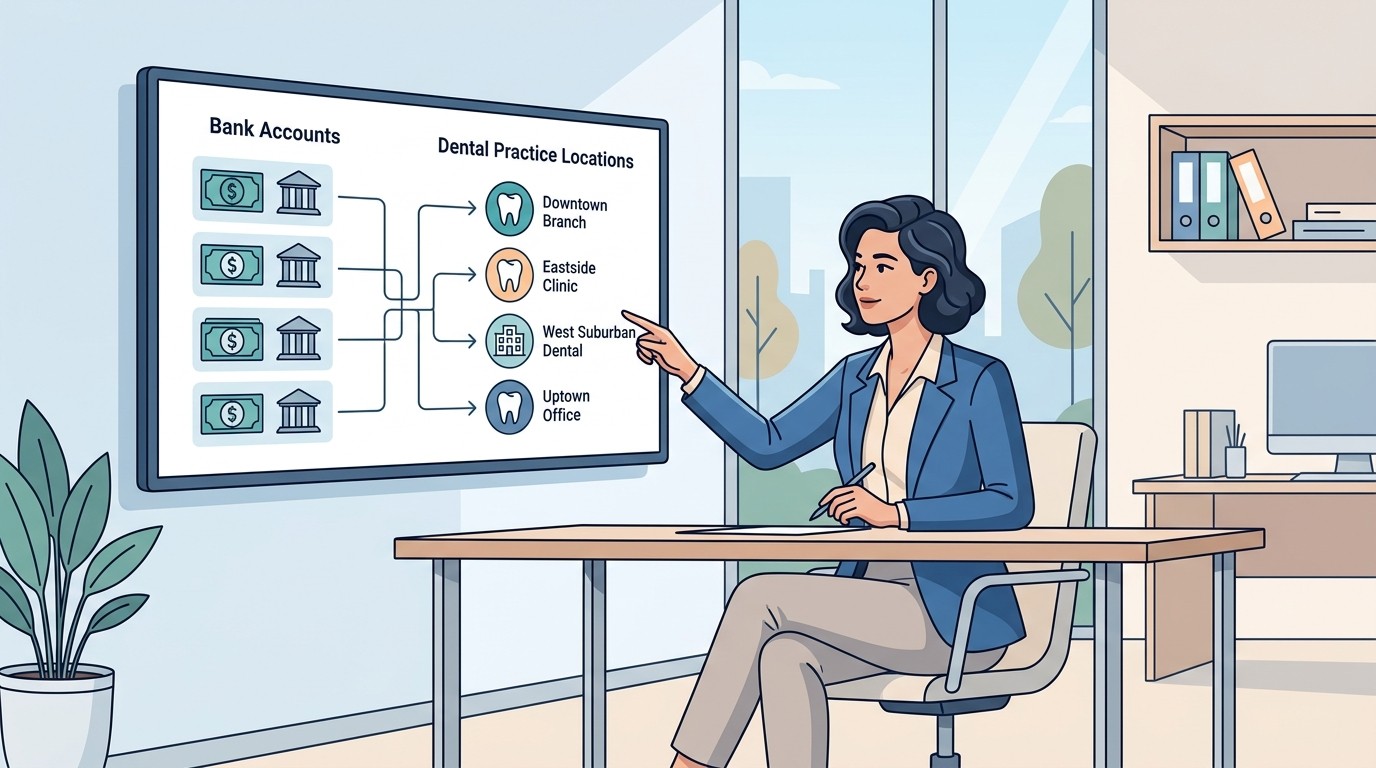
Ascend is designed for groups with multiple locations. Financial data can be viewed at the location level or rolled up to the organization level.
For reconciliation, this means:
- Each location should reconcile independently
- Corporate can verify across locations
- Centralized reporting simplifies oversight
Daily Reconciliation Process
Step 1: Run the Daily Closeout
At the end of each business day, run the Daily Closeout Report. In Ascend, navigate to:
Reporting > Financial > Daily Closeout
Select today's date range and run the report. This shows:
- Total collections by payment type
- Adjustments posted
- Net collection total
Print or export this report. You will compare it to your actual deposits.
Step 2: Verify Payment Counts
Before comparing totals, verify the transaction counts make sense:
- How many credit card transactions?
- How many cash transactions?
- How many check transactions?
- How many insurance payments?
Compare these counts to your payment terminal batch and your physical check stack. The numbers should match exactly.
Step 3: Run the Deposit Slip Report
Ascend generates deposit slips that group payments for banking. Navigate to:
Reporting > Financial > Deposit Slip
This report groups payments by type and provides totals suitable for bank deposit slips. Compare:
- Cash total to cash counted
- Check total to checks in hand
- Credit card total to terminal batch total
Discrepancies here indicate either posting errors or missing payments.
Step 4: Compare to Bank
After depositing, compare:
- Deposited cash to Ascend cash total
- Deposited checks to Ascend check total
- Credit card batch settlement to Ascend credit card total
Insurance EFTs require separate verification against the bank statement once they arrive.
Step 5: Document and Sign Off
Create a daily reconciliation record:
- Date
- Ascend collection total
- Actual deposit total
- Any discrepancies and explanations
- Initials of person reconciling
Store these records. They are your audit trail if questions arise later.
Insurance Payment Reconciliation
Insurance payments in Ascend require additional attention because of the gap between posting and deposit.
ERA Import and Posting
Ascend imports ERAs from clearinghouses. When ERAs arrive:
- Navigate to Insurance > ERA Management
- Review pending ERAs
- Post payments to patient accounts
Posting creates the ledger entries. But posting does not mean the money arrived in your bank account.
Verifying Insurance Deposits
This is where many practices fail. They post insurance payments when ERAs arrive but never verify that the actual funds landed.
For EFT payments:
- Match ERA totals to bank deposit amounts
- Verify trace numbers match bank references
- Flag any ERA that lacks a corresponding deposit
For check payments:
- Match check amounts to ERA amounts
- Verify checks were actually received
- Deposit and verify bank credit
Handling Bulk EFT Deposits
Insurance companies often send one EFT for multiple ERAs. The bank deposit is a lump sum. The ERAs are separate transactions.
To reconcile:
- Sum all ERAs from a payer for the deposit period
- Compare to the single bank deposit
- Investigate any difference
Ascend's Payment Detail Report helps here. Filter by payer and date range to sum what was posted.
End of Month Reconciliation
Daily reconciliation catches most issues. Monthly reconciliation provides the comprehensive verification.
Step 1: Run Monthly Financial Summary
Navigate to Reporting > Financial and run:
- Monthly Production Report
- Monthly Collection Report
- Monthly Adjustment Report
These provide the aggregate numbers for the month.
Step 2: Compare to Bank Statements
Total collections in Ascend should reconcile to:
- Total bank deposits for the month
- Minus any deposits not related to patient payments
- Plus any outstanding deposits not yet credited
Create a reconciliation schedule:
Ascend Total Collections:     $XX,XXX
Plus: Outstanding Deposits:   $X,XXX
Minus: Non-Patient Deposits:  ($X,XXX)
Adjusted Total:               $XX,XXX
Bank Deposit Total:           $XX,XXX
Difference:                   $0
Any difference requires investigation.
Step 3: Verify Adjustments
Review the Adjustment Report for unusual patterns:
- Large write-offs
- Unusual adjustment codes
- Adjustments posted by unexpected users
Adjustments are a common fraud vector. Monthly review catches problems that daily review might miss.
Step 4: Outstanding Insurance Review
Run an Aging Report for insurance accounts receivable. Review:
- Claims over 30 days without payment
- Claims with partial payments
- Claims denied and not resubmitted
This is not strictly reconciliation, but it identifies revenue leakage from the insurance cycle.
Multi-Location Considerations
If you are running multiple locations on Ascend, additional reconciliation steps apply.
Location-Level Reconciliation
Each location should complete daily reconciliation independently. Location managers should sign off on their own numbers.
Corporate Rollup Verification
Corporate finance should:
- Review location reconciliation reports
- Run organization-wide reports
- Compare aggregate totals to aggregate bank deposits
- Investigate location-level discrepancies
Standardized Procedures
All locations should follow identical reconciliation procedures. Document the process. Train staff consistently. Audit compliance periodically.
Common Ascend Reconciliation Issues
Timing Differences
Cloud systems update in real time. If someone posts a payment at 4:59 PM and you run the report at 5:00 PM, it might or might not appear depending on exact timing.
Solution: Establish clear cutoff times. All posting for the day must be complete before running closeout reports.
User Posting Errors
Multiple users posting simultaneously can create errors. Payments posted to wrong accounts. Duplicate postings. Missed postings.
Solution: Payment counts are your verification. If Ascend shows 15 credit card payments and your terminal shows 16 batched transactions, you have a posting error.
ERA Posting Without Deposit Verification
This is the most common problem. Staff posts ERA payments but never confirms the money arrived.
Solution: Separate posting from verification. The person posting ERAs should not be the person verifying bank deposits.
Automation Options
Manual reconciliation in Ascend is manageable but time-consuming. Automation helps.
Built-In Reports
Ascend's reporting suite handles most reconciliation needs. Schedule reports to run automatically. Export to Excel for analysis.
External Verification
Tools like Zeldent connect to both Ascend and your bank feeds. We match expected payments to actual deposits automatically. When something does not match, you know immediately.
This is especially valuable for insurance payments, where the gap between posting and deposit creates risk.
Key Takeaways
- Ascend runs in the cloud; reports reflect real-time data
- Daily reconciliation requires matching Ascend totals to actual deposits
- Insurance payments need separate verification beyond ERA posting
- Multi-location practices should reconcile at location and corporate levels
- Automation reduces manual effort and catches discrepancies faster
The cloud makes Ascend flexible and accessible. But flexibility does not replace controls. Build reconciliation into your daily workflow, and the cloud becomes an asset rather than a risk.
Related Reading: